How to Render a SketchUp Model With AI
A stepwise walkthrough for going from a SketchUp viewport to a photorealistic image, with no render engine and no material setup.
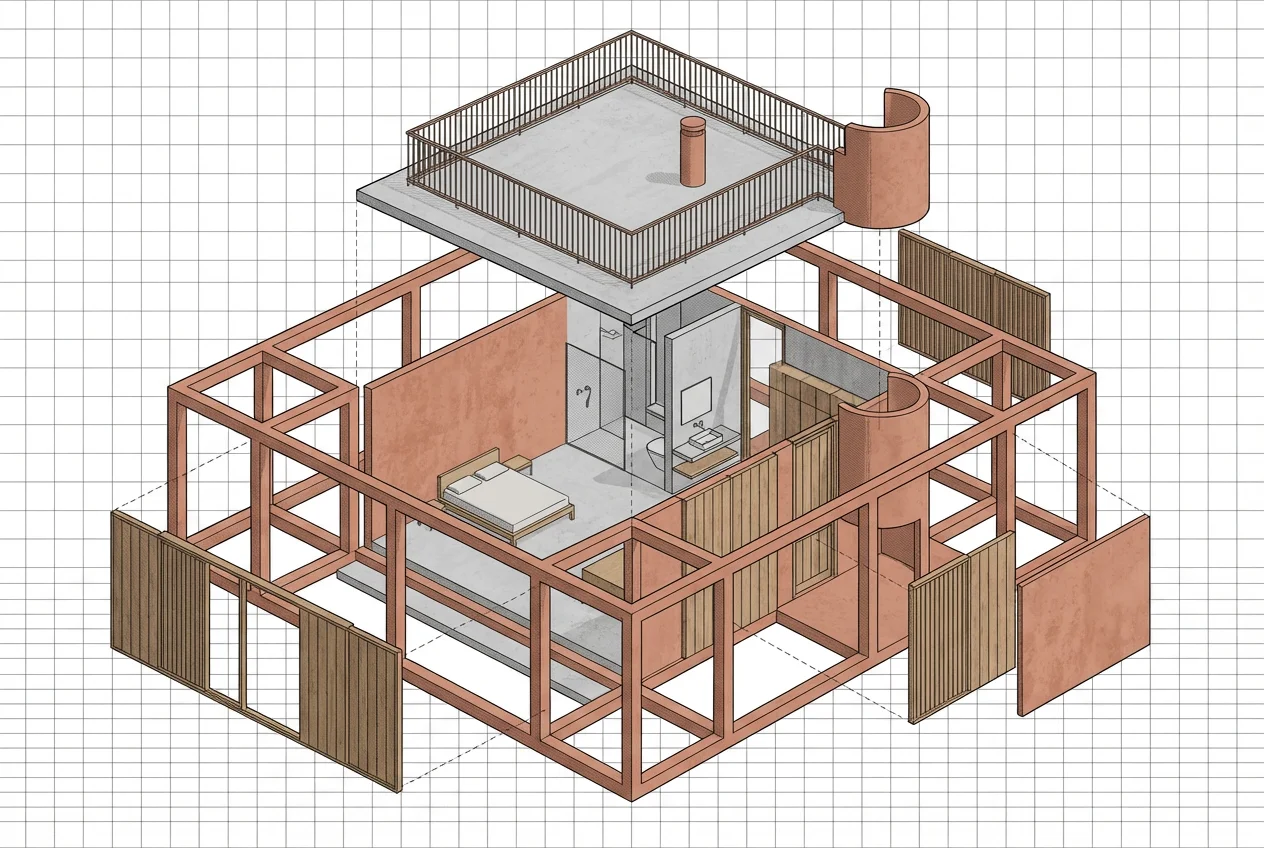
To render a SketchUp model with AI, export or screenshot the viewport you want, upload it to a tool like Gaia, then describe the materials, camera angle and lighting and let it render a photorealistic image in about twenty seconds. You do not need to assign materials, set up lights or export to a render engine: the AI reads your SketchUp view as a 2D input, infers surfaces and light, and you refine specific regions until it matches your intent.
What you need
A SketchUp model at any level of finish, and an idea of the atmosphere. No render engine, no plugin, no complete material setup. Gaia runs in the browser with nothing to install, and you can start free with five renders. The whole loop below takes minutes and a few cents.
Step 1: Frame and capture the view
Composition is your first decision, and SketchUp already gives you the tools for it. Orbit to the angle you want, set a sensible field of view, and frame the shot the way you would a real photograph. Then capture it two ways:
- Export: File, Export, 2D Graphic, and save a PNG or JPG at a decent resolution.
- Screenshot: a clean viewport grab works too. Hide the axes and any clutter first.
Monochrome, shaded or hidden-line all work. The more clearly your massing and edges read, the more faithfully the render follows them. You are giving the AI intent, not measurements, so a clean confident view beats a busy one.
Step 2: Upload and set the scene
Drop the exported view into Gaia and direct it. Name the materials you want: board-formed concrete, oiled oak, blackened steel, ribbed glass. Set the light: low morning sun, overcast noon, dusk with warm interior lamps. Fix the camera intent: eye-level street view, a worm's-eye at the entrance, a three-quarter massing shot. Specific direction produces specific images; vague prompts produce generic ones.
Step 3: Render in about twenty seconds
Render. In roughly twenty seconds you have a photorealistic image built from your SketchUp view. Read it like a critic. Does the light fall the way you meant? Do the materials carry the mood? Is the massing intact? The first render is a draft to react to, not a verdict.
Step 4: Iterate with Edit, do not re-roll
When one element is wrong, most tools make you re-render everything and lose what worked. Gaia's Edit lets you mask a single region and brush change only there. Swap the facade material while the sky and foreground hold. Open a solid wall into glazing without touching the roof. This is directing an image, not gambling on the next roll.
Step 5: Let it learn your taste
Every render teaches the Taste Twin your materials, atmospheres, camera angles and vocabulary. The tenth SketchUp view you render lands closer to what you would approve than the first, because Gaia has learned the way your practice sees. No competitor frames a personalized, learning design model, and it is why repeat use gets faster and not only cheaper.
Why this beats the traditional route for concept work
A full render engine like V-Ray or Enscape gives you final fidelity, but it needs a complete model with materials and lighting and real setup time. In the concept and schematic phase that is a lot of ceremony to test an idea you might discard. Rendering the SketchUp view directly with AI costs from about EUR 0.02 against hundreds to roughly EUR 1,500 for a traditional external render, so you can explore a direction instead of defending one. Reserve the modeled pipeline for the final deliverable, and use Gaia to find the idea worth modeling.
Start
Open your model, frame a view, and export it. Then bring it to the architects workflow and see the first render in about twenty seconds. Commercial use is included on every plan, so the images are yours to use. See pricing when you are ready to move past the free renders.