How to Render a Rhino Model With AI
A stepwise walkthrough for turning a Rhino viewport into a photorealistic image, with no render plugin and no lighting rig.
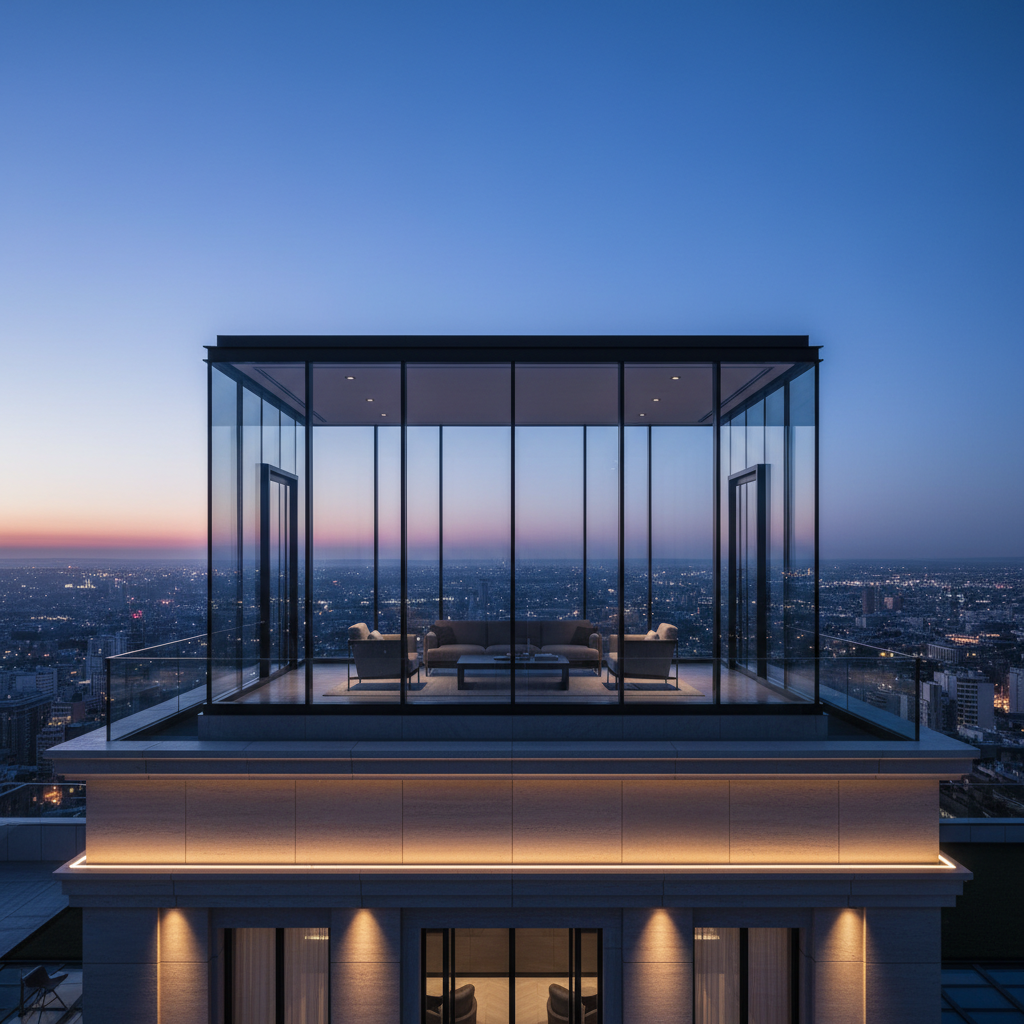
To render a Rhino model with AI, capture or export the viewport you want, upload it to a tool like Gaia, then describe the materials, camera angle and lighting and let it render a photorealistic image in about twenty seconds. There is no need to assign materials, build a lighting rig or send the scene to a render engine: the AI reads your Rhino viewport as a 2D input, infers surfaces and light, and you refine specific regions until the image matches your intent.
What you need
A Rhino model at any stage, from a rough massing to detailed geometry, and a sense of the atmosphere. No render plugin, no material trees, no lighting setup. Gaia is web-based with nothing to install, and there are five free renders to start.
Step 1: Set the viewport and capture it
Rhino's viewport is your camera. Orbit to the angle you want and pick a display mode that reads clearly: Shaded, Rendered, or even Wireframe for a pure massing study all work. Then get it out as a flat image:
- Capture: use ViewCaptureToFile for a clean, sized image straight from the viewport.
- Screenshot: or grab the viewport quickly if you just want something fast.
Turn off the grid and any construction clutter first. Complex Rhino geometry, curved shells, faceted skins, parametric louvers, renders especially well, because the AI has strong edges to follow. You are handing it intent, not tolerances.
Step 2: Upload and direct the render
Bring the captured view into Gaia and make the decisions a render is made of. Name the materials: weathering steel, polished concrete, pale travertine, matte ceramic. Set the light: raking late sun, flat overcast, blue hour with lit interiors. Fix the camera intent: eye level at the approach, a low three-quarter for drama, an aerial for the massing. Precise direction gives precise images.
Step 3: Render in about twenty seconds
Render, and in roughly twenty seconds a photorealistic image comes back built from your Rhino view. Judge it hard. Did the curvature survive? Do the materials carry weight? Is the light telling the story you intended? Treat the first result as a draft to push against, not a final answer.
Step 4: Iterate with Edit instead of re-rendering
When a single area is off, you should not have to lose the whole image. Gaia's Edit masks a region and brushes change only there. Shift a cladding material while the landscape holds. Carve an opening into a shell without disturbing the rest. It keeps the parts that worked and changes only the part that did not.
Step 5: The render learns your practice
Every image trains the Taste Twin on your materials, atmospheres, camera angles and design language. For architects working in Rhino and iterating on form, that compounding matters: the model starts anticipating the palette and framing you keep returning to, so later renders arrive closer to approval with less direction. No other tool frames a personalized, learning design model.
Concept speed versus modeled fidelity
Traditional engines like V-Ray and Enscape can take a Rhino model to a final, dimensionally faithful deliverable, but they need a complete scene with materials and lighting and setup time to match. Early on, that overhead slows the exploration. Rendering the Rhino viewport directly with AI costs from about EUR 0.02 against hundreds to roughly EUR 1,500 for a traditional external render, cheap enough to test many forms in an afternoon. Use AI to find the geometry worth finishing, then hand it to the modeled pipeline.
Start
Capture a viewport, open the architects workflow, and watch the first render arrive in about twenty seconds. Commercial use is included on every plan, and pricing is EUR 24 per month for Pro when you outgrow the free renders. Browse the gallery to see what the range looks like.