
What “Decision Graph” Means on Gaia: Three Things That Exist Today
Less philosophy, more mechanics. Here is what is in production, what you can click, what is stored, and what is still on the roadmap.
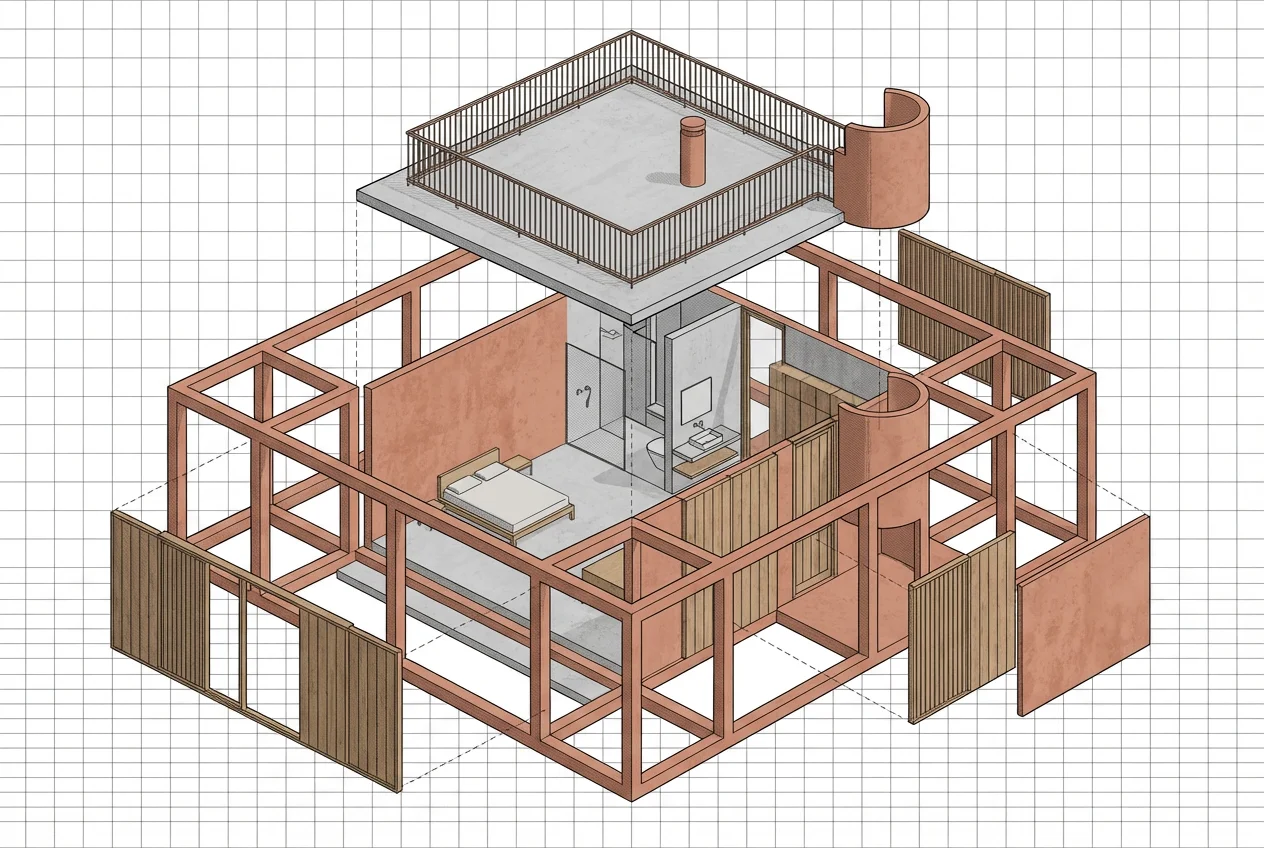
If the phrase “decision graph” felt vague, that is on us. This post fixes that with a simple split: what you can do in the product today, what gets written to the database when you do it, and what is not live yet (so you are not left guessing).
One sentence version
Gaia is adding a structured record for “this person is in the middle of a design choice”: a tree of nodes, each able to hold variants (for example renders), instead of only storing disconnected images. Only part of that vision is visible in the UI so far; the rest is infrastructure and upcoming screens.
1) Style Quiz — what actually happens
- You answer the questions on [Style Quiz](/style-quiz). When you finish the last step, the app ensures you have a Firebase sign-in (including an anonymous session if you were logged out).
- We write a new decision tree document in Firestore and a root node on that tree. The node is created in a primed state (ready for the next pipeline step), with style priors derived from your answers and your winning style id stored on the node.
- We also store a stable browser session key on the tree. If you later create a permanent account from the same browser, a server-side merge can reassign that tree to your new uid so the quiz is not lost when auth changes.
What you do not see yet: a studio screen that walks that same tree node-by-node, or automatic “comparison pair” renders attached to the node. Those are the next slices we are wiring to the same Firestore shape.
2) Living Nodes — a separate, concrete feature
Living Nodes are not the decision graph UI. They are a shared URL to a small real-time workspace: one prompt, four nodes (slides), Firestore-backed sync, guest remix within rules, a micro style quiz for guests, and a path into Studio when someone wants to render for real. Step-by-step: Living Nodes: how to share a real-time concept deck.
3) Interior AI — unchanged
Interior AI still does what it always did: upload a room photo, pick a style, get variations quickly. The decision graph work does not replace that flow; it is the data layer we will attach comparisons, sharing, and billing logic to as those screens ship.
Roadmap (not shipped — user-visible outcomes)
- **First room upload → two deliberate variants** on the same node, so onboarding ends in a side-by-side choice instead of one lucky render.
- **Pick a winner → open the next suggested decision** with priors carried forward (what we call resolution / cascade internally).
- **Share an unresolved choice** so a guest can vote or react, then optionally enter Gaia with context.
- **Buy credits or upgrade inside the comparison view** when you are out of credits, instead of dumping you on a generic pricing page.
We published this note early so feedback stays grounded in what exists versus what is promised. If something above still reads vague, tell us which bullet: we will tighten the product copy there first.
Try it
Take the Style Quiz if you want the behaviour described in section 1. Open Interior AI for immediate room iterations. Start a Living Node if you need a live link for collaborators today.
More updates land on News.